
Free Delivery  ·  COD Available  ·  15-Day Returns
Pricio
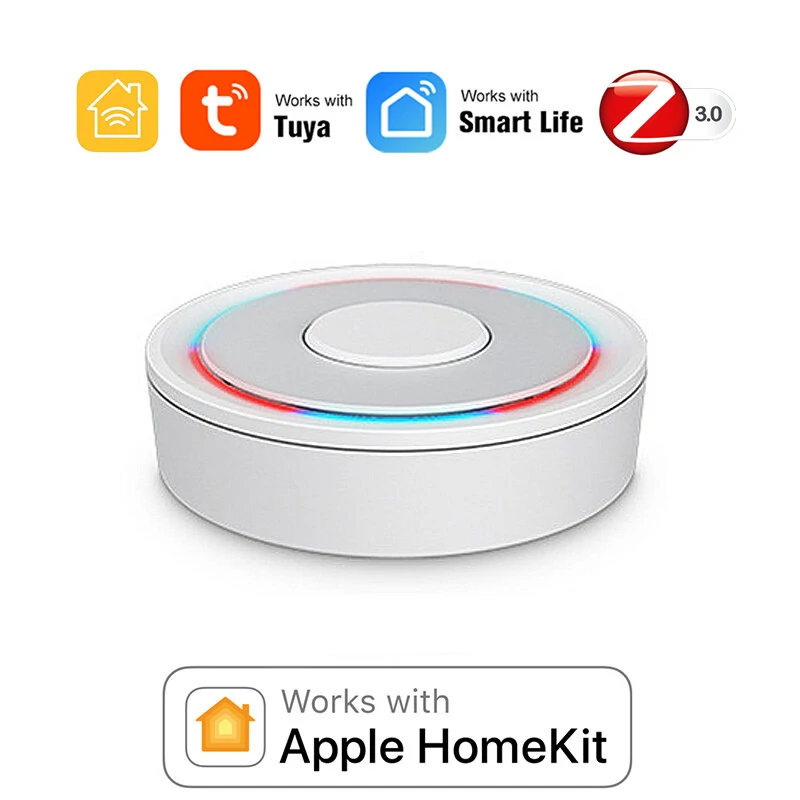
Tuya Homekit Zigbe Wired Gateway Hub APP Remote Control Intelligent Smart Home Bridge Support Voice Control with Alexa Google Home — image 1
Hover to zoom

1 / 5 · Click to enlarge

Tuya Homekit Zigbe Wired Gateway Hub APP Remote Control Intelligent Smart Home Bridge Support Voice Control with Alexa Google Home

5.010 ratings
574+ bought in last month
AI Summary
product for everyday users

The Tuya Homekit Zigbe Wired Gateway Hub APP Remote Control Intelligent Smart Home Bridge Support Voice Control with Alexa Google Home is a mid-range product designed for everyday users. Customers praise its easy to set up and use and fast and responsive. 100% of buyers rate it 4★ or above.

easy to set up and usefast and responsiveclear and bright displaycompact and portable
₹3,035-15%
MRP:₹3,571Save ₹536
Free Shipping💵 COD Available

Available Offers

Free Delivery on this order. No minimum order value.

15-Day Easy Returns — hassle-free return & full refund.

Secure Payment — 100% safe checkout with UPI, Cards & Net Banking.

15% Off — you save ₹536 on this product!

Total: ₹3,035
Buying tip: A quality investment for dependable performance and premium build quality.
Estimated delivery: 26 Aug9 Sept
Free Shipping
Pan India delivery
15-Day Returns
Hassle-free policy
Secure Payment
Razorpay protected
Quality Assured
Vetted products only

Available Offers

💳

5% Cashback

Pay with UPI & get 5% cashback (up to ₹50) via Razorpay

🏦

No-Cost EMI

Available on select bank cards at checkout. 0% interest for 3 months.

📦

Free Shipping

Free delivery on all orders. No minimum order value.

💵

Cash on Delivery

COD available on orders up to ₹5,000 across India.

Ideal For

Hobbyist flyingOutdoor recreationKids entertainment
Share:
SKU: bg-1982672

About This Product

The Tuya Homekit Zigbe Wired Gateway Hub APP Remote Control Intelligent Smart Home Bridge Support Voice Control with Alexa Google Home is a mid-range designed for everyday users. Customers highlight its easy to set up and use and fast and responsive.

Customer Verdict

100% of buyers rated this product 4 stars or above. The most appreciated qualities are: easy to set up and use, fast and responsive, clear and bright display, compact and portable.

Why Buy from Pricio?

Pricio sources this product directly, cutting out multiple middlemen. Every order includes free shipping, a 15-day return policy, and secure payment via Razorpay.

Specification:

Model Number: Homekit ZigBe Gateway Hub 3.0 Gateway Hub
USB power supply: 5V/1A(Power adapter not included)
Working temperature: 10C-55℃
Working humidity: 10%-90% RU
Storage temperature: 10C-55℃
Storage humidity: 10%-90% RH
Network protocol: Zigbe IEEE 802.15.4
Product type: Wired gateway(Needs to be connected to the network through the Ethernet Port.)
Firmware upgrade: OTA support
Size: 78x78x25MM


Package Include:

1× Gateway


Supplementary Note:

①Supports both HomeKit and ZigBe protocols.
②This device cannot be directly connected to WiFi(Needs to be connected to the network through the Ethernet Port,The Ethernet port is only used for network connection, not for power supply).
③This is a dual-purpose gateway, which can be used as a ZigBe Hub to connect with TUYA APP, or as a HomeKit Hub to connect with Apple Home APP.
④If you want your Zigbe smart device to connect to Apple Home APP through this Gateway/Hub, you need to make sure your Zigbe smart device supports HomeKit authentication protocol.
⑤When using the TUYA APP, Most Zigbe devices can be added to the gateway. (Non-ZigBe protocol smart devices such as TUYA WiFi smart devices cannot access this ZigBe gateway).
⑥When using the Apple Home APP, you can add HomeKit-certified Zigbe devices to the gateway.
⑦Only HomeKit certified Zigbe smart devices can be added to the Apple Home APP.Therefore, you cannot connect an uncertified TUYA Zigbe smart device to the Apple Home APP through this HomeKit Hub.
⑧When you use Apple Home APP to connect smart devices, you need to make sure that your smart devices are using ZigBe protocol and have been certified by HomeKit, otherwise it will not work, thanks.
⑨This gateway is not compatible with the following device: Tuya Zigbe Smart IR Remote (Tuya ZS06), this device requires the Main Module Versin of the gateway must be higher than 1.31.0, and our gateway Main Module Versin is: 1.3.0.
⑩Please note: The latest version of the HomeKit APP has been updated. Devices such as gateways and bridges will no longer be displayed on the homepage and the homepage of the default room. You will not see the gateway that has been successfully added to the HomeKit APP in the default room.
⑪Non-ZigBe protocol smart devices such as TUYA WiFi smart devices cannot access this ZigBe gateway.


How to find this Gateway in the Apple Home APP ?
Step 1: Click Home Settings. Step 2: Click Home Hubs & Bridges. Step 3: Click Bedroom NEO Gateway (the gateway you want to find). How to add a sub-device, please refer to the steps of adding a sub-device below. After the gateway is successfully added, there is basically no need to operate in the app, unless you want to delete the gateway, so it is a reasonable arrangement to hide it in the default room. When you need to pair with a smart device, you only need to short press the black button on the gateway.
 
How to restore factory settings:
You can restore factory settings by long pressing the black button on the device, but you cannot judge whether the factory settings are successfully restored by factors such as lights. You need to connect the device to TUYA / Smart Life APP first, and then long press the black button on the device. When you see the gateway disappear from your TUYA / Smart Life APP, you can prove that the factory reset is complete.
 
How to use TUYA / Smart Life APP and Apple Home APP at the same time?
If you want to use two APPs at the same time, we recommend to connect Apple Home APP first, and then connect TUYA / Smart Life APP, everything will go smoothly. Conversely, when you connect TUYA / Smart Life APP first, then connect Apple Home APP, It will cause the Apple Home APP to fail to connect, and the device cannot be found.


Product Safety Information

Setup Guide

1
Charge the vehicle battery
Connect the vehicle battery to the included charger. Charge fully (typically 1–2 hours) before first run. Never leave charging unattended.
2
Install batteries in the transmitter
Open the transmitter battery compartment and insert AA batteries as indicated by the polarity markings.
3
Power on in the correct order
Turn ON the transmitter FIRST, then the vehicle. This prevents unexpected runaway movement.
4
Trim and calibrate
If the vehicle pulls left or right at rest, use the steering trim knob on the transmitter to centre it.
5
Start slowly
Begin with half-throttle to get a feel for the controls. Gradually increase speed as you become familiar with the handling.